> ## Documentation Index
> Fetch the complete documentation index at: https://utopia.mintlify.site/llms.txt
> Use this file to discover all available pages before exploring further.
# ComfyUI Hunyuan3D-2 Examples
> This guide will demonstrate how to use Hunyuan3D-2 in ComfyUI to generate 3D assets.
# Hunyuan3D 2.0 Introduction


[Hunyuan3D 2.0](https://github.com/Tencent/Hunyuan3D-2) is an open-source 3D asset generation model released by Tencent, capable of generating high-fidelity 3D models with high-resolution texture maps through text or images.
Hunyuan3D 2.0 adopts a two-stage generation approach, first generating a geometry model without textures, then synthesizing high-resolution texture maps. This effectively separates the complexity of shape and texture generation. Below are the two core components of Hunyuan3D 2.0:
1. **Geometry Generation Model (Hunyuan3D-DiT)**: Based on a flow diffusion Transformer architecture, it generates untextured geometric models that precisely match input conditions.
2. **Texture Generation Model (Hunyuan3D-Paint)**: Combines geometric conditions and multi-view diffusion techniques to add high-resolution textures to models, supporting PBR materials.
**Key Advantages**
* **High-Precision Generation**: Sharp geometric structures, rich texture colors, support for PBR material generation, achieving near-realistic lighting effects.
* **Diverse Usage Methods**: Provides code calls, Blender plugins, Gradio applications, and online experience through the official website, suitable for different user needs.
* **Lightweight and Compatibility**: The Hunyuan3D-2mini model requires only 5GB VRAM, the standard version needs 6GB VRAM for shape generation, and the complete process (shape + texture) requires only 12GB VRAM.
Recently (March 18, 2025), Hunyuan3D 2.0 also introduced a multi-view shape generation model (Hunyuan3D-2mv), which supports generating more detailed geometric structures from inputs at different angles.
This example includes three workflows:
* Using Hunyuan3D-2mv with multiple view inputs to generate 3D models
* Using Hunyuan3D-2mv-turbo with multiple view inputs to generate 3D models
* Using Hunyuan3D-2 with a single view input to generate 3D models
ComfyUI now natively supports Hunyuan3D-2mv, but does not yet support texture and material generation. Please make sure you have updated to the latest version of [ComfyUI](https://github.com/comfyanonymous/ComfyUI) before starting.
The workflow example PNG images in this tutorial contain workflow JSON in their metadata:
* You can drag them directly into ComfyUI
* Or use the menu `Workflows` -> `Open (ctrl+o)`
This will load the corresponding workflow and prompt you to download the required models. The generated `.glb` format models will be output to the `ComfyUI/output/mesh` folder.
## ComfyUI Hunyuan3D-2mv Workflow Example
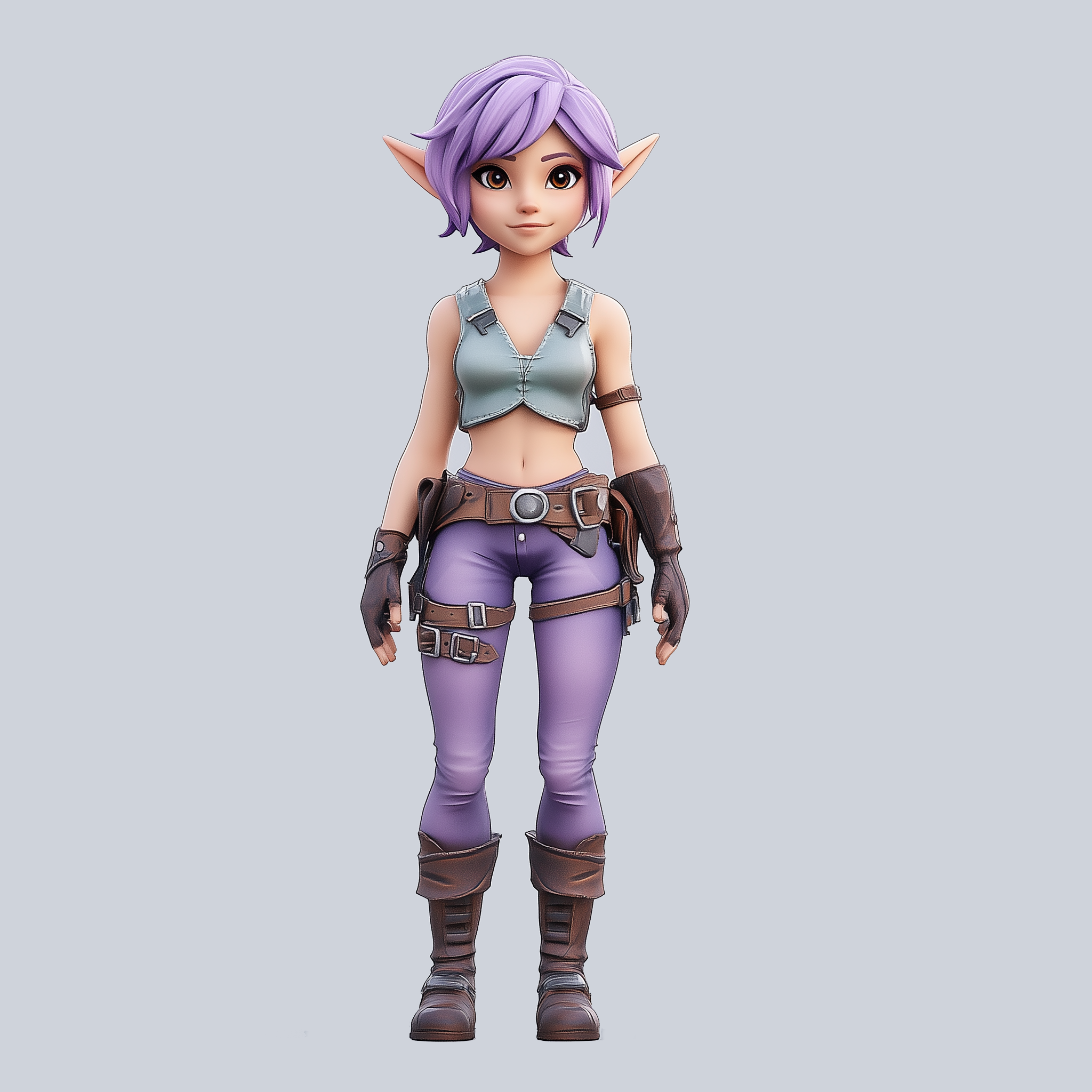
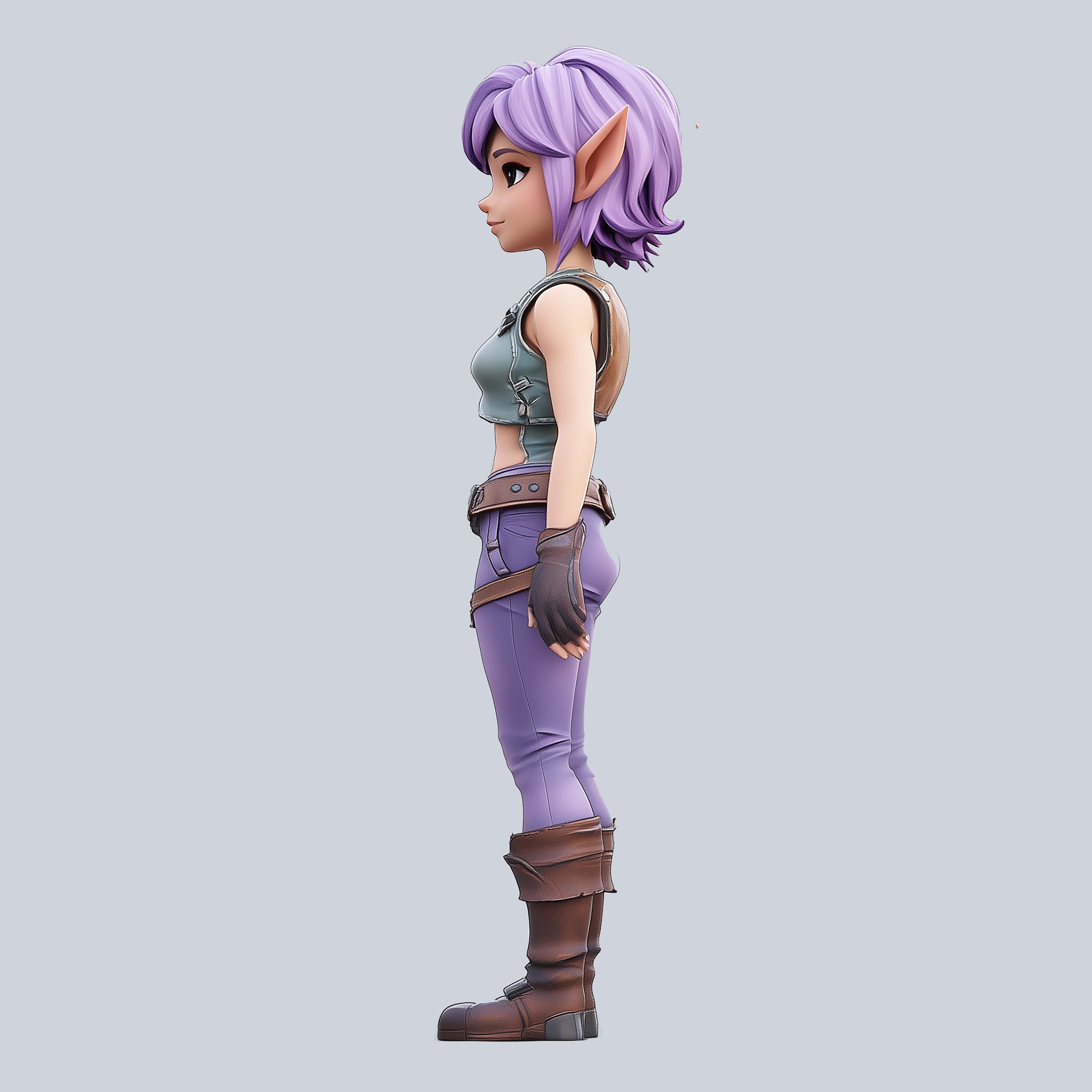
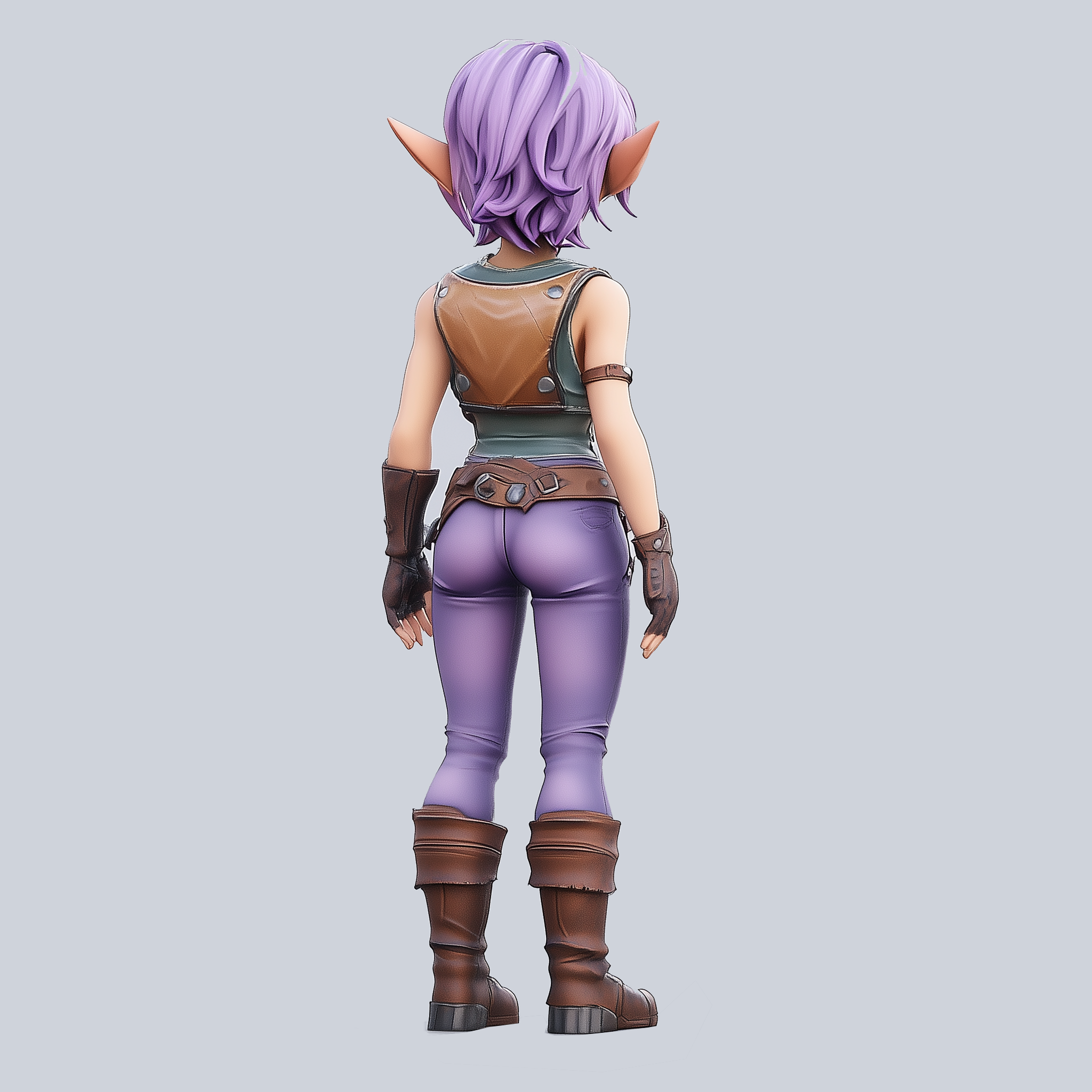
In the Hunyuan3D-2mv workflow, we'll use multi-view images to generate a 3D model. Note that multiple view images are not mandatory in this workflow - you can use only the `front` view image to generate a 3D model.
Make sure your ComfyUI is updated.
* [Download ComfyUI](https://www.comfy.org/download)
* [Update Guide](/installation/update_comfyui)
Workflows in this guide can be found in the [Workflow Templates](/interface/features/template).
If you can't find them in the template, your ComfyUI may be outdated.(Desktop version's update will delay sometime)
If nodes are missing when loading a workflow, possible reasons:
1. Not using the latest ComfyUI version(Nightly version)
2. Using Stable or Desktop version (Latest changes may not be included)
3. Some nodes failed to import at startup
### 1. Workflow
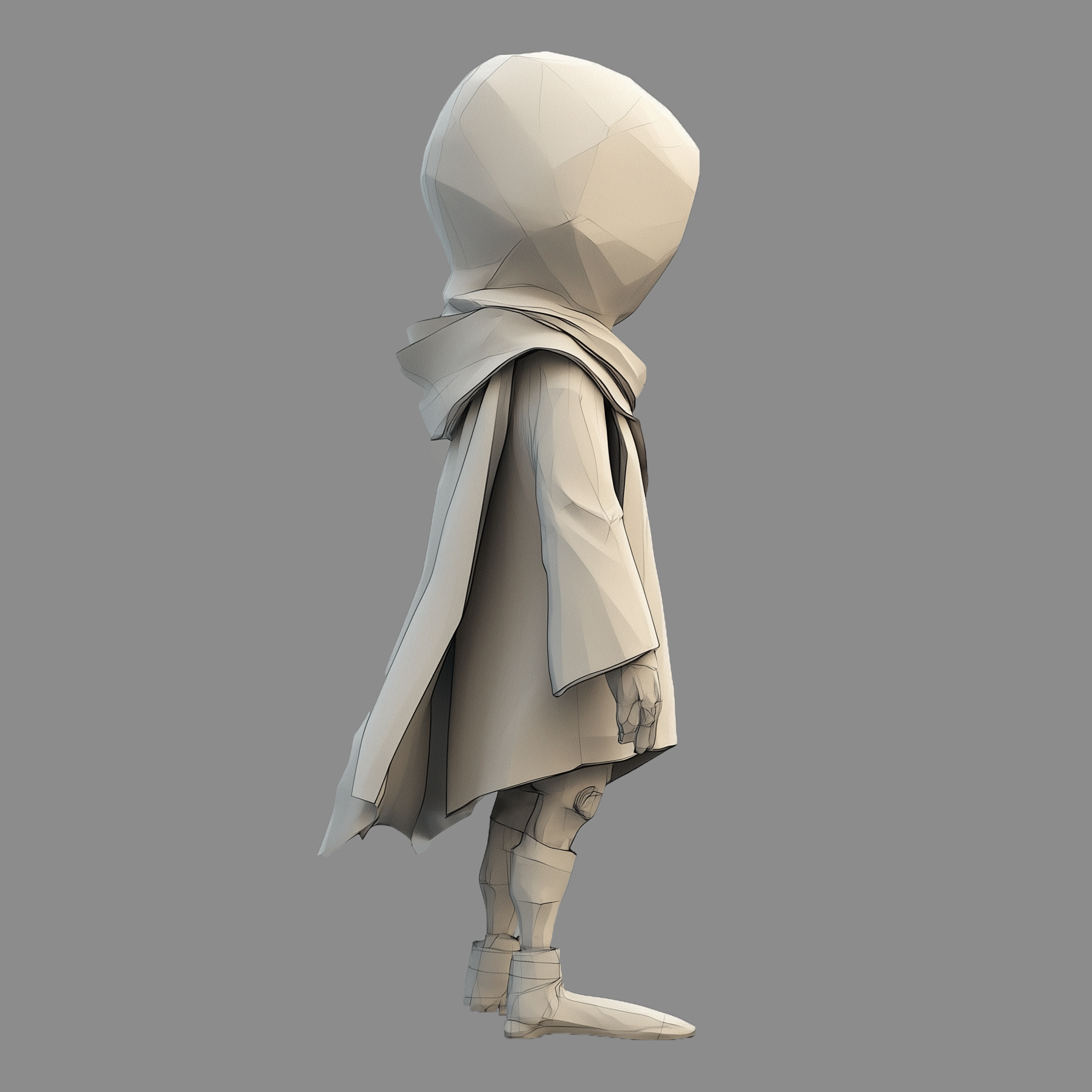
Please download the images below and drag into ComfyUI to load the workflow.

Download the images below we will use them as input images.
In this example, the input images have already been preprocessed to remove excess background. In actual use, you can use custom nodes like [ComfyUI\_essentials](https://github.com/cubiq/ComfyUI_essentials) to automatically remove excess background.
### 2. Manual Model Installation
Download the model below and save it to the corresponding ComfyUI folder
* hunyuan3d-dit-v2-mv: [model.fp16.safetensors](https://huggingface.co/tencent/Hunyuan3D-2mv/resolve/main/hunyuan3d-dit-v2-mv/model.fp16.safetensors?download=true) - after downloading, you can rename it to `hunyuan3d-dit-v2-mv.safetensors`
```
ComfyUI/
├── models/
│ ├── checkpoints/
│ │ └── hunyuan3d-dit-v2-mv.safetensors // renamed file
```
### 3. Steps to Run the Workflow
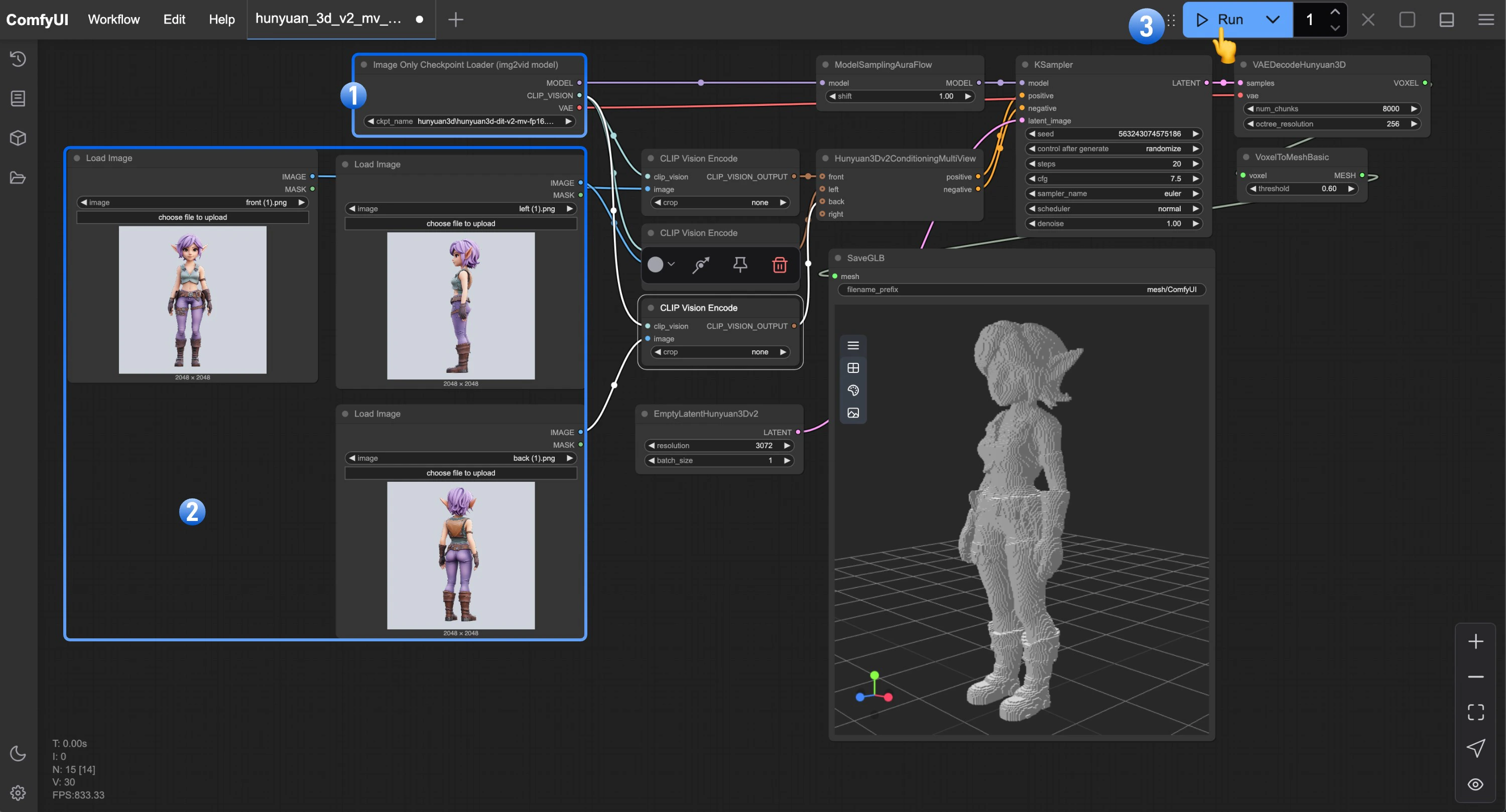 1. Ensure that the Image Only Checkpoint Loader(img2vid model) has loaded our downloaded and renamed `hunyuan3d-dit-v2-mv.safetensors` model
2. Load the corresponding view images in each of the `Load Image` nodes
3. Click the `Queue` button, or use the shortcut `Ctrl(cmd) + Enter` to run the workflow
If you need to add more views, make sure to load other view images in the `Hunyuan3Dv2ConditioningMultiView` node, and ensure that you load the corresponding view images in the `Load Image` nodes.
## Hunyuan3D-2mv-turbo Workflow
In the Hunyuan3D-2mv-turbo workflow, we'll use the Hunyuan3D-2mv-turbo model to generate 3D models. This model is a step distillation version of Hunyuan3D-2mv, allowing for faster 3D model generation. In this version of the workflow, we set `cfg` to 1.0 and add a `flux guidance` node to control the `distilled cfg` generation.
### 1. Workflow
Please download the images below and drag into ComfyUI to load the workflow.

Download the images below we will use them as input images.
### 2. Manual Model Installation
Download the model below and save it to the corresponding ComfyUI folder
* hunyuan3d-dit-v2-mv-turbo: [model.fp16.safetensors](https://huggingface.co/tencent/Hunyuan3D-2mv/resolve/main/hunyuan3d-dit-v2-mv-turbo/model.fp16.safetensors?download=true) - after downloading, you can rename it to `hunyuan3d-dit-v2-mv-turbo.safetensors`
```
ComfyUI/
├── models/
│ ├── checkpoints/
│ │ └── hunyuan3d-dit-v2-mv-turbo.safetensors // renamed file
```
### 3. Steps to Run the Workflow
1. Ensure that the Image Only Checkpoint Loader(img2vid model) has loaded our downloaded and renamed `hunyuan3d-dit-v2-mv.safetensors` model
2. Load the corresponding view images in each of the `Load Image` nodes
3. Click the `Queue` button, or use the shortcut `Ctrl(cmd) + Enter` to run the workflow
If you need to add more views, make sure to load other view images in the `Hunyuan3Dv2ConditioningMultiView` node, and ensure that you load the corresponding view images in the `Load Image` nodes.
## Hunyuan3D-2mv-turbo Workflow
In the Hunyuan3D-2mv-turbo workflow, we'll use the Hunyuan3D-2mv-turbo model to generate 3D models. This model is a step distillation version of Hunyuan3D-2mv, allowing for faster 3D model generation. In this version of the workflow, we set `cfg` to 1.0 and add a `flux guidance` node to control the `distilled cfg` generation.
### 1. Workflow
Please download the images below and drag into ComfyUI to load the workflow.

Download the images below we will use them as input images.
### 2. Manual Model Installation
Download the model below and save it to the corresponding ComfyUI folder
* hunyuan3d-dit-v2-mv-turbo: [model.fp16.safetensors](https://huggingface.co/tencent/Hunyuan3D-2mv/resolve/main/hunyuan3d-dit-v2-mv-turbo/model.fp16.safetensors?download=true) - after downloading, you can rename it to `hunyuan3d-dit-v2-mv-turbo.safetensors`
```
ComfyUI/
├── models/
│ ├── checkpoints/
│ │ └── hunyuan3d-dit-v2-mv-turbo.safetensors // renamed file
```
### 3. Steps to Run the Workflow
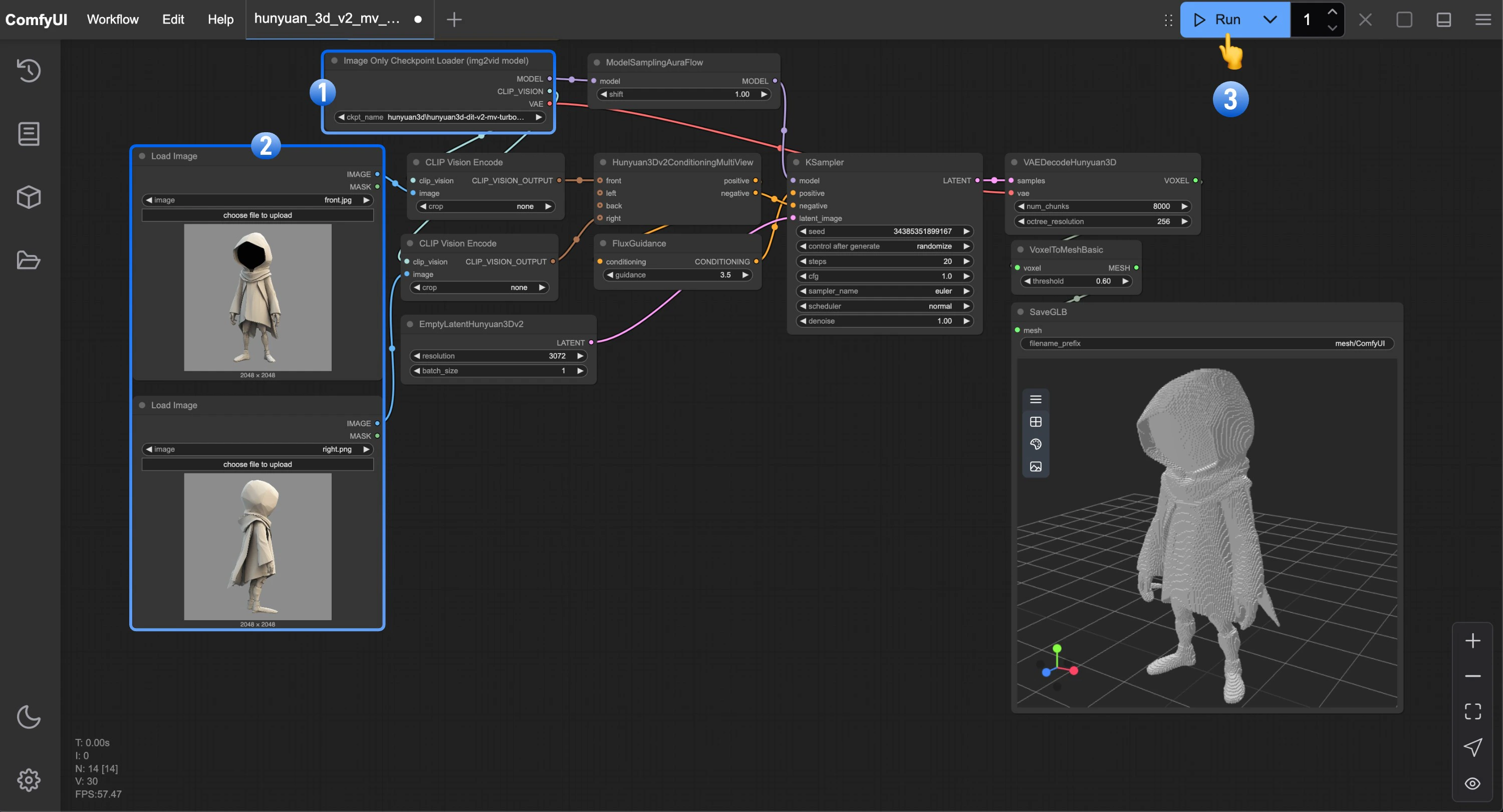 1. Ensure that the `Image Only Checkpoint Loader(img2vid model)` node has loaded our renamed `hunyuan3d-dit-v2-mv-turbo.safetensors` model
2. Load the corresponding view images in each of the `Load Image` nodes
3. Click the `Queue` button, or use the shortcut `Ctrl(cmd) + Enter` to run the workflow
## Hunyuan3D-2 Single View Workflow
In the Hunyuan3D-2 workflow, we'll use the Hunyuan3D-2 model to generate 3D models. This model is not a multi-view model. In this workflow, we use the `Hunyuan3Dv2Conditioning` node instead of the `Hunyuan3Dv2ConditioningMultiView` node.
### 1. Workflow
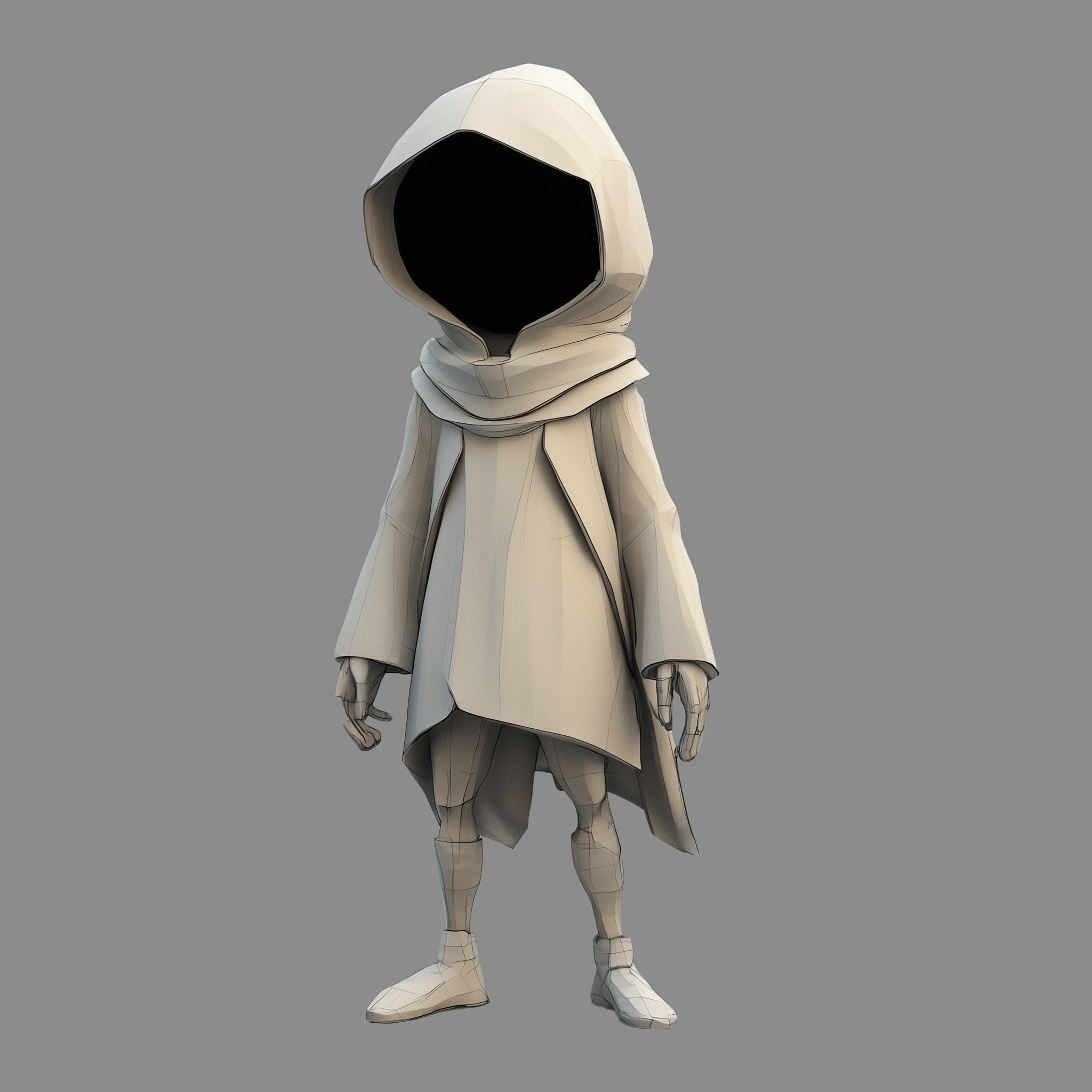
Please download the image below and drag it into ComfyUI to load the workflow.

Download the image below we will use it as input image.

### 2. Manual Model Installation
Download the model below and save it to the corresponding ComfyUI folder
* hunyuan3d-dit-v2-0: [model.fp16.safetensors](https://huggingface.co/tencent/Hunyuan3D-2/resolve/main/hunyuan3d-dit-v2-0/model.fp16.safetensors?download=true) - after downloading, you can rename it to `hunyuan3d-dit-v2.safetensors`
```
ComfyUI/
├── models/
│ ├── checkpoints/
│ │ └── hunyuan3d-dit-v2.safetensors // renamed file
```
### 3. Steps to Run the Workflow
1. Ensure that the `Image Only Checkpoint Loader(img2vid model)` node has loaded our renamed `hunyuan3d-dit-v2-mv-turbo.safetensors` model
2. Load the corresponding view images in each of the `Load Image` nodes
3. Click the `Queue` button, or use the shortcut `Ctrl(cmd) + Enter` to run the workflow
## Hunyuan3D-2 Single View Workflow
In the Hunyuan3D-2 workflow, we'll use the Hunyuan3D-2 model to generate 3D models. This model is not a multi-view model. In this workflow, we use the `Hunyuan3Dv2Conditioning` node instead of the `Hunyuan3Dv2ConditioningMultiView` node.
### 1. Workflow
Please download the image below and drag it into ComfyUI to load the workflow.

Download the image below we will use it as input image.

### 2. Manual Model Installation
Download the model below and save it to the corresponding ComfyUI folder
* hunyuan3d-dit-v2-0: [model.fp16.safetensors](https://huggingface.co/tencent/Hunyuan3D-2/resolve/main/hunyuan3d-dit-v2-0/model.fp16.safetensors?download=true) - after downloading, you can rename it to `hunyuan3d-dit-v2.safetensors`
```
ComfyUI/
├── models/
│ ├── checkpoints/
│ │ └── hunyuan3d-dit-v2.safetensors // renamed file
```
### 3. Steps to Run the Workflow
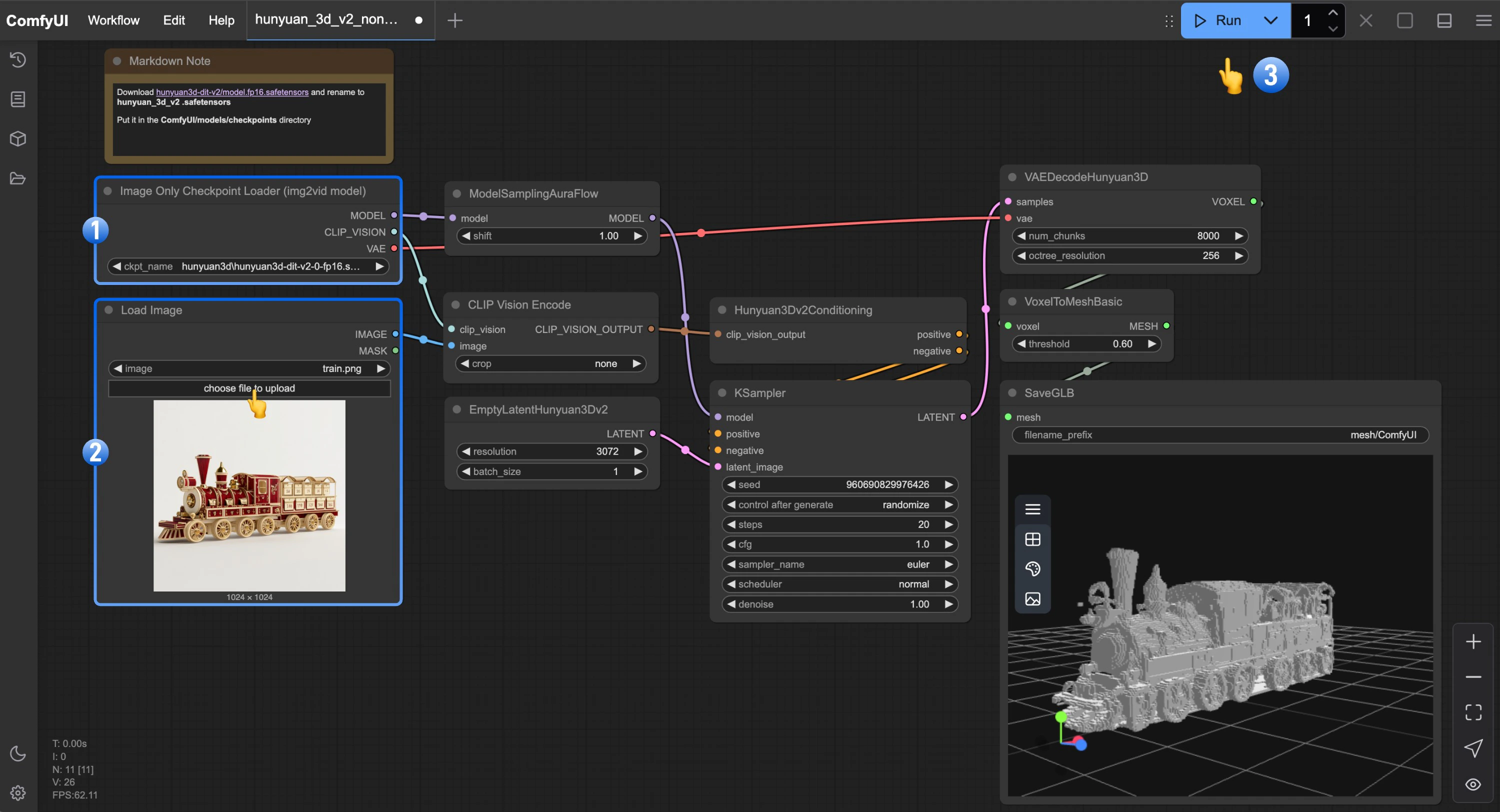 1. Ensure that the `Image Only Checkpoint Loader(img2vid model)` node has loaded our renamed `hunyuan3d-dit-v2.safetensors` model
2. Load the image in the `Load Image` node
3. Click the `Queue` button, or use the shortcut `Ctrl(cmd) + Enter` to run the workflow
## Community Resources
Below are ComfyUI community resources related to Hunyuan3D-2
* [ComfyUI-Hunyuan3DWrapper](https://github.com/kijai/ComfyUI-Hunyuan3DWrapper)
* [Kijai/Hunyuan3D-2\_safetensors](https://huggingface.co/Kijai/Hunyuan3D-2_safetensors/tree/main)
* [ComfyUI-3D-Pack](https://github.com/MrForExample/ComfyUI-3D-Pack)
## Hunyuan3D 2.0 Open-Source Model Series
Currently, Hunyuan3D 2.0 has open-sourced multiple models covering the complete 3D generation process. You can visit [Hunyuan3D-2](https://github.com/Tencent/Hunyuan3D-2) for more information.
**Hunyuan3D-2mini Series**
| Model | Description | Date | Parameters | Huggingface |
| --------------------- | ------------------------- | ---------- | ---------- | --------------------------------------------------------------------------------------- |
| Hunyuan3D-DiT-v2-mini | Mini Image to Shape Model | 2025-03-18 | 0.6B | [Visit](https://huggingface.co/tencent/Hunyuan3D-2mini/tree/main/hunyuan3d-dit-v2-mini) |
**Hunyuan3D-2mv Series**
| Model | Description | Date | Parameters | Huggingface |
| ------------------------ | ----------------------------------------------------------------------------------------------------------- | ---------- | ---------- | ---------------------------------------------------------------------------------------- |
| Hunyuan3D-DiT-v2-mv-Fast | Guidance Distillation Version, can halve DIT inference time | 2025-03-18 | 1.1B | [Visit](https://huggingface.co/tencent/Hunyuan3D-2mv/tree/main/hunyuan3d-dit-v2-mv-fast) |
| Hunyuan3D-DiT-v2-mv | Multi-view Image to Shape Model, suitable for 3D creation requiring multiple angles to understand the scene | 2025-03-18 | 1.1B | [Visit](https://huggingface.co/tencent/Hunyuan3D-2mv/tree/main/hunyuan3d-dit-v2-mv) |
**Hunyuan3D-2 Series**
| Model | Description | Date | Parameters | Huggingface |
| ----------------------- | --------------------------- | ---------- | ---------- | ------------------------------------------------------------------------------------- |
| Hunyuan3D-DiT-v2-0-Fast | Guidance Distillation Model | 2025-02-03 | 1.1B | [Visit](https://huggingface.co/tencent/Hunyuan3D-2/tree/main/hunyuan3d-dit-v2-0-fast) |
| Hunyuan3D-DiT-v2-0 | Image to Shape Model | 2025-01-21 | 1.1B | [Visit](https://huggingface.co/tencent/Hunyuan3D-2/tree/main/hunyuan3d-dit-v2-0) |
| Hunyuan3D-Paint-v2-0 | Texture Generation Model | 2025-01-21 | 1.3B | [Visit](https://huggingface.co/tencent/Hunyuan3D-2/tree/main/hunyuan3d-paint-v2-0) |
| Hunyuan3D-Delight-v2-0 | Image Delight Model | 2025-01-21 | 1.3B | [Visit](https://huggingface.co/tencent/Hunyuan3D-2/tree/main/hunyuan3d-delight-v2-0) |
1. Ensure that the `Image Only Checkpoint Loader(img2vid model)` node has loaded our renamed `hunyuan3d-dit-v2.safetensors` model
2. Load the image in the `Load Image` node
3. Click the `Queue` button, or use the shortcut `Ctrl(cmd) + Enter` to run the workflow
## Community Resources
Below are ComfyUI community resources related to Hunyuan3D-2
* [ComfyUI-Hunyuan3DWrapper](https://github.com/kijai/ComfyUI-Hunyuan3DWrapper)
* [Kijai/Hunyuan3D-2\_safetensors](https://huggingface.co/Kijai/Hunyuan3D-2_safetensors/tree/main)
* [ComfyUI-3D-Pack](https://github.com/MrForExample/ComfyUI-3D-Pack)
## Hunyuan3D 2.0 Open-Source Model Series
Currently, Hunyuan3D 2.0 has open-sourced multiple models covering the complete 3D generation process. You can visit [Hunyuan3D-2](https://github.com/Tencent/Hunyuan3D-2) for more information.
**Hunyuan3D-2mini Series**
| Model | Description | Date | Parameters | Huggingface |
| --------------------- | ------------------------- | ---------- | ---------- | --------------------------------------------------------------------------------------- |
| Hunyuan3D-DiT-v2-mini | Mini Image to Shape Model | 2025-03-18 | 0.6B | [Visit](https://huggingface.co/tencent/Hunyuan3D-2mini/tree/main/hunyuan3d-dit-v2-mini) |
**Hunyuan3D-2mv Series**
| Model | Description | Date | Parameters | Huggingface |
| ------------------------ | ----------------------------------------------------------------------------------------------------------- | ---------- | ---------- | ---------------------------------------------------------------------------------------- |
| Hunyuan3D-DiT-v2-mv-Fast | Guidance Distillation Version, can halve DIT inference time | 2025-03-18 | 1.1B | [Visit](https://huggingface.co/tencent/Hunyuan3D-2mv/tree/main/hunyuan3d-dit-v2-mv-fast) |
| Hunyuan3D-DiT-v2-mv | Multi-view Image to Shape Model, suitable for 3D creation requiring multiple angles to understand the scene | 2025-03-18 | 1.1B | [Visit](https://huggingface.co/tencent/Hunyuan3D-2mv/tree/main/hunyuan3d-dit-v2-mv) |
**Hunyuan3D-2 Series**
| Model | Description | Date | Parameters | Huggingface |
| ----------------------- | --------------------------- | ---------- | ---------- | ------------------------------------------------------------------------------------- |
| Hunyuan3D-DiT-v2-0-Fast | Guidance Distillation Model | 2025-02-03 | 1.1B | [Visit](https://huggingface.co/tencent/Hunyuan3D-2/tree/main/hunyuan3d-dit-v2-0-fast) |
| Hunyuan3D-DiT-v2-0 | Image to Shape Model | 2025-01-21 | 1.1B | [Visit](https://huggingface.co/tencent/Hunyuan3D-2/tree/main/hunyuan3d-dit-v2-0) |
| Hunyuan3D-Paint-v2-0 | Texture Generation Model | 2025-01-21 | 1.3B | [Visit](https://huggingface.co/tencent/Hunyuan3D-2/tree/main/hunyuan3d-paint-v2-0) |
| Hunyuan3D-Delight-v2-0 | Image Delight Model | 2025-01-21 | 1.3B | [Visit](https://huggingface.co/tencent/Hunyuan3D-2/tree/main/hunyuan3d-delight-v2-0) |