> ## Documentation Index
> Fetch the complete documentation index at: https://utopia.mintlify.site/llms.txt
> Use this file to discover all available pages before exploring further.
# ComfyUI Ideogram 3.0 API Node Official Examples
> This guide covers how to use the Ideogram 3.0 API node in ComfyUI
Ideogram 3.0 is a powerful text-to-image model by Ideogram, known for its photorealistic quality, accurate text rendering, and consistent style control.
The [Ideogram V3](/built-in-nodes/api-node/image/ideogram/ideogram-v3) node currently supports two modes:
* Text-to-Image mode
* Image Editing mode (when both image and mask inputs are provided)
To use the API nodes, you need to ensure that you are logged in properly and using a permitted network environment. Please refer to the [API Nodes Overview](/tutorials/api-nodes/overview) section of the documentation to understand the specific requirements for using the API nodes.
Make sure your ComfyUI is updated.
* [Download ComfyUI](https://www.comfy.org/download)
* [Update Guide](/installation/update_comfyui)
Workflows in this guide can be found in the [Workflow Templates](/interface/features/template).
If you can't find them in the template, your ComfyUI may be outdated.(Desktop version's update will delay sometime)
If nodes are missing when loading a workflow, possible reasons:
1. Not using the latest ComfyUI version(Nightly version)
2. Using Stable or Desktop version (Latest changes may not be included)
3. Some nodes failed to import at startup
## Ideogram 3.0 Node Documentation
Check the following documentation for detailed node parameter settings:
* [Ideogram V3](/built-in-nodes/api-node/image/ideogram/ideogram-v3)
## Ideogram 3.0 API Node Text-to-Image Mode
When using [Ideogram V3](/built-in-nodes/api-node/image/ideogram/ideogram-v3) without image and mask inputs, the node operates in Text-to-Image mode.
### 1. Download Workflow File
Download and drag the following file into ComfyUI to load the workflow:

### 2. Complete the Workflow Steps
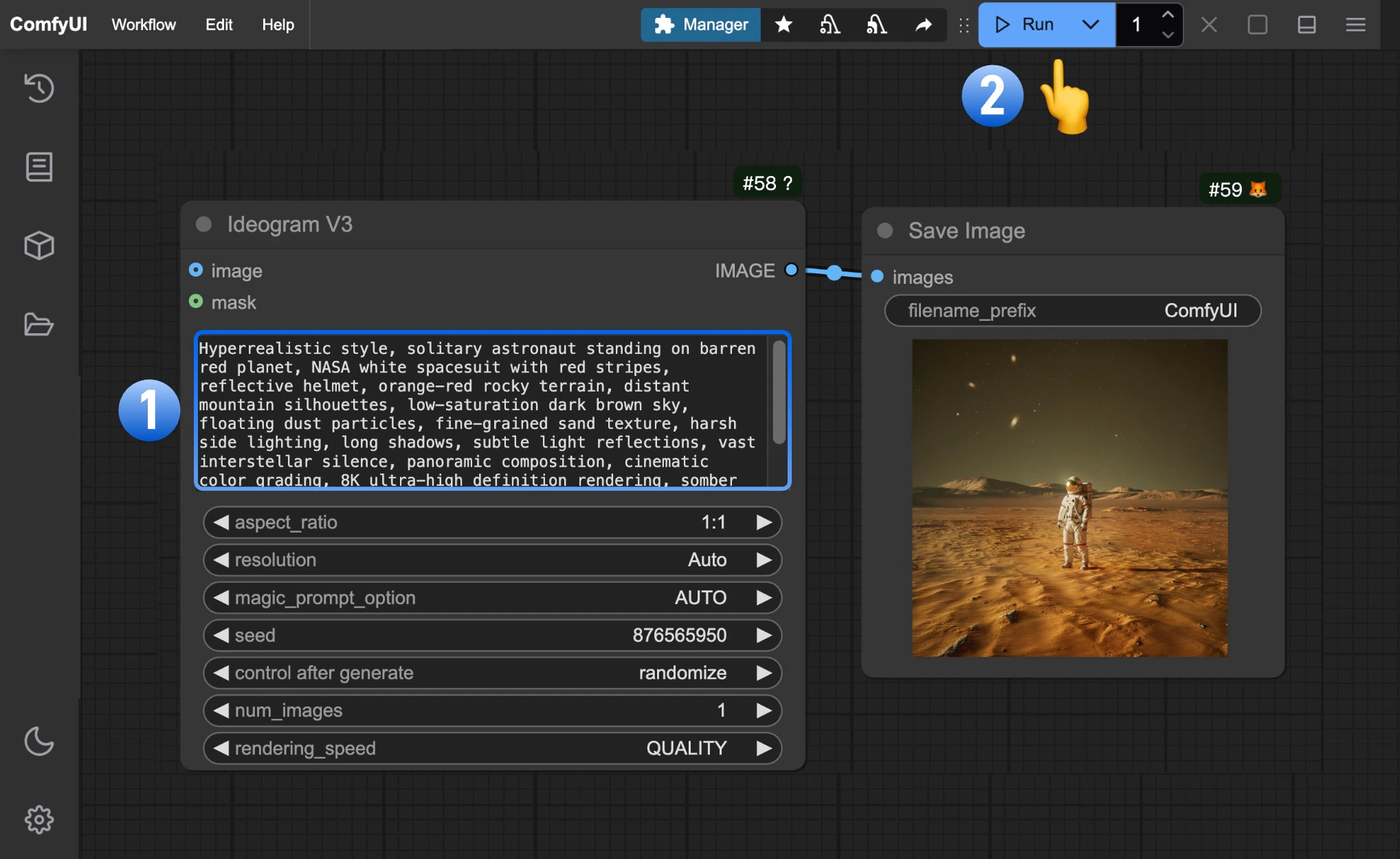 Follow the numbered steps to complete the basic workflow:
1. Enter your image description in the `prompt` field of the `Ideogram V3` node
2. Click `Run` or use shortcut `Ctrl(cmd) + Enter` to generate the image
3. After the API returns results, view the generated image in the `Save Image` node. Images are saved to the `ComfyUI/output/` directory
## Ideogram 3.0 API Node Image Editing Mode
\[To be updated]
Follow the numbered steps to complete the basic workflow:
1. Enter your image description in the `prompt` field of the `Ideogram V3` node
2. Click `Run` or use shortcut `Ctrl(cmd) + Enter` to generate the image
3. After the API returns results, view the generated image in the `Save Image` node. Images are saved to the `ComfyUI/output/` directory
## Ideogram 3.0 API Node Image Editing Mode
\[To be updated]