> ## Documentation Index
> Fetch the complete documentation index at: https://utopia.mintlify.site/llms.txt
> Use this file to discover all available pages before exploring further.
# Luma Text to Video API Node ComfyUI Official Guide
> Learn how to use the Luma Text to Video API node in ComfyUI
The [Luma Text to Video](/built-in-nodes/api-node/video/luma/luma-text-to-video) node allows you to create high-quality, smooth videos from text descriptions using Luma AI's innovative video generation technology.
In this guide, we'll show you how to set up a text-to-video workflow using this node.
To use the API nodes, you need to ensure that you are logged in properly and using a permitted network environment. Please refer to the [API Nodes Overview](/tutorials/api-nodes/overview) section of the documentation to understand the specific requirements for using the API nodes.
Make sure your ComfyUI is updated.
* [Download ComfyUI](https://www.comfy.org/download)
* [Update Guide](/installation/update_comfyui)
Workflows in this guide can be found in the [Workflow Templates](/interface/features/template).
If you can't find them in the template, your ComfyUI may be outdated.(Desktop version's update will delay sometime)
If nodes are missing when loading a workflow, possible reasons:
1. Not using the latest ComfyUI version(Nightly version)
2. Using Stable or Desktop version (Latest changes may not be included)
3. Some nodes failed to import at startup
## Luma Text to Video Node Documentation
Check out the following documentation to learn more about the node parameters:
Documentation for the Luma Text to Video API node
Documentation for the Luma Concepts API node
## Text to Video Workflow with Luma API Node
The Luma Text to Video node requires text prompts to describe the video content. In this guide, we've created examples using `prompt` and `luma_concepts` to showcase Luma AI's excellent video generation capabilities.
### 1. Download the Workflow
The workflow information is included in the metadata of the video below. Download and drag it into ComfyUI to load the workflow.

### 2. Follow the Steps
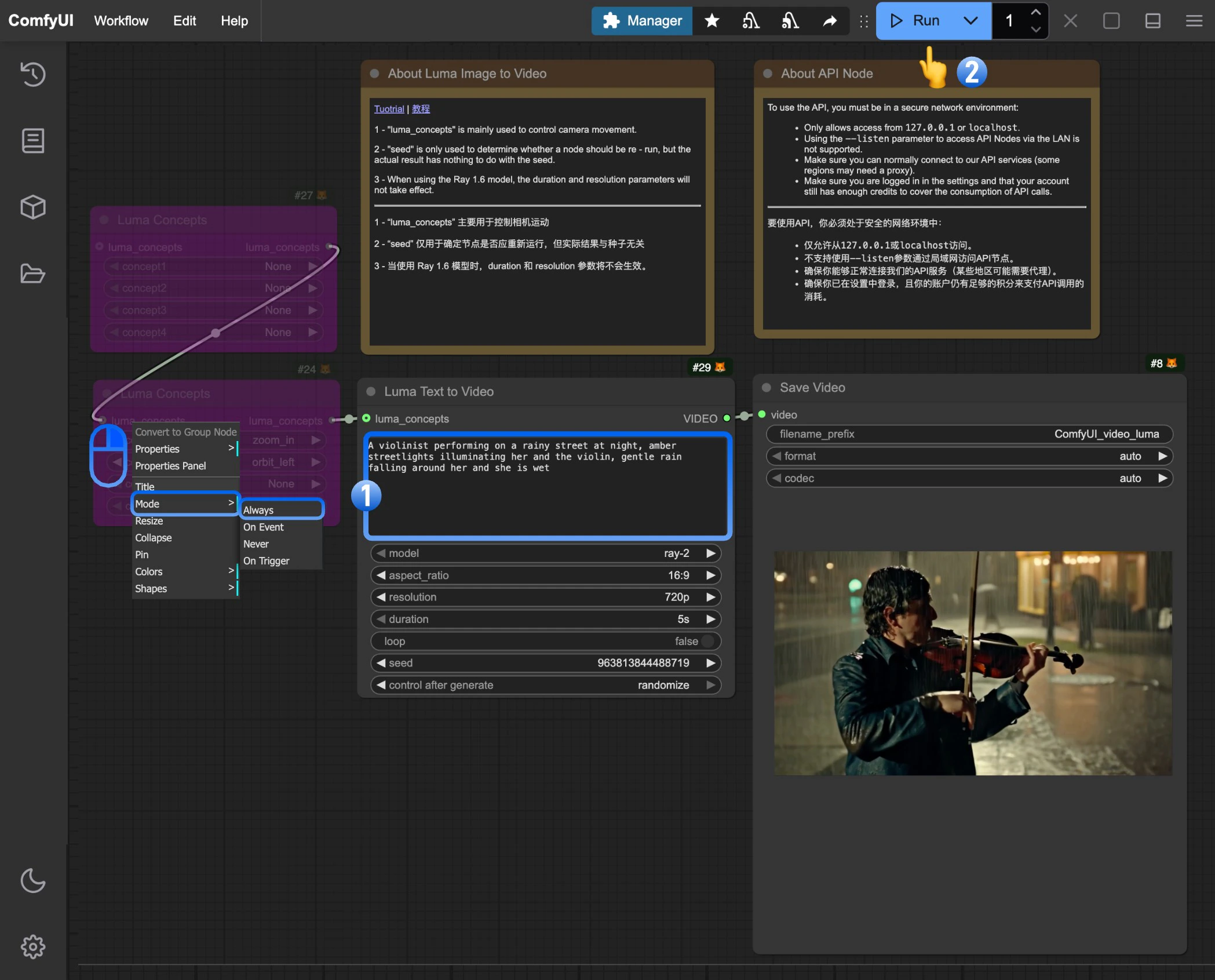 Follow these basic steps to run the workflow:
1. Write your prompt in the `Luma Text to Video` node to describe the video content you want
2. Click the `Run` button or use the shortcut `Ctrl(cmd) + Enter` to generate the video
3. After the API returns results, you can view the generated video in the `Save Video` node. The video will also be saved to the `ComfyUI/output/` directory
> (Optional) Modify the `Luma Concepts` node to control camera movements and add professional cinematography
### 3. Additional Notes
* **Writing Prompts**: Describe scenes, subjects, actions, and mood in detail for best results
* **Luma Concepts**: Mainly used for camera control to create professional video shots
* **Seed Parameter**: Only determines if the node should rerun, doesn't affect generation results
* **Model Selection**: Different video models have different features, adjustable via the model parameter
* **Resolution and Duration**: Adjust output video resolution and length using these parameters
* **Ray 1.6 Model Note**: Duration and resolution parameters don't work when using the Ray 1.6 model
Follow these basic steps to run the workflow:
1. Write your prompt in the `Luma Text to Video` node to describe the video content you want
2. Click the `Run` button or use the shortcut `Ctrl(cmd) + Enter` to generate the video
3. After the API returns results, you can view the generated video in the `Save Video` node. The video will also be saved to the `ComfyUI/output/` directory
> (Optional) Modify the `Luma Concepts` node to control camera movements and add professional cinematography
### 3. Additional Notes
* **Writing Prompts**: Describe scenes, subjects, actions, and mood in detail for best results
* **Luma Concepts**: Mainly used for camera control to create professional video shots
* **Seed Parameter**: Only determines if the node should rerun, doesn't affect generation results
* **Model Selection**: Different video models have different features, adjustable via the model parameter
* **Resolution and Duration**: Adjust output video resolution and length using these parameters
* **Ray 1.6 Model Note**: Duration and resolution parameters don't work when using the Ray 1.6 model